

Setting up legal billing software sounds like a multi-day IT project. In reality, with the right platform and a clear plan, most solicitors and small law firms can be fully operational within a single working day. This guide walks you through every stage — from initial configuration to sending your first invoice — in a logical, practical sequence.
Whether you are migrating from a spreadsheet-based system, upgrading from a legacy platform, or setting up billing processes for the first time, the steps below apply. There is no need for specialist IT support, and no requirement for a drawn-out onboarding process.
Let us begin.
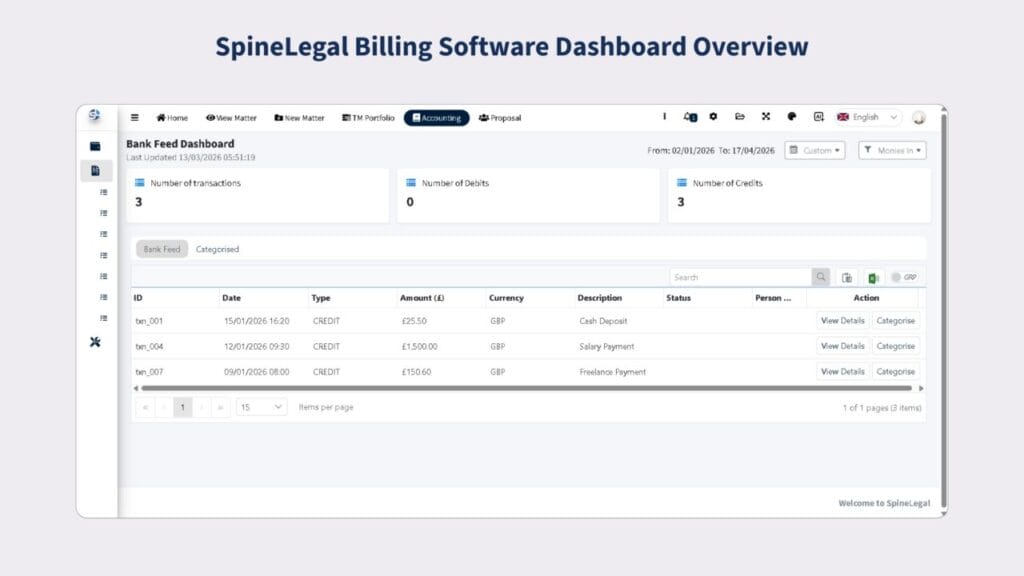
Step 1: Prepare Before You Log In
The most common reason a billing software setup takes longer than a day is poor preparation. Before you touch the platform, gather the following:
- • Your firm’s VAT registration number and SRA authorisation details
- • A list of active matters and corresponding client names
- • Your standard hourly rates, fixed fee structures, and disbursement categories
- • Existing invoice templates or branding assets (logo, firm colours, address)
- • Bank account details for payment references
Having this information ready means you can complete configuration forms in a single pass rather than stopping and starting. Thirty minutes of preparation can save three hours of rework.
Step 2: Configure Your Firm Profile
Once you have accessed your account, the first task is completing your firm profile. This is more than cosmetic — the data you enter here populates every invoice and statement your firm produces.
Navigate to Settings or Firm Profile and enter:
- • Full legal trading name and registered address
- • VAT number (if VAT-registered)
- • SRA number and regulated status
- • Primary contact email and telephone number
- • Billing terms (e.g., payment due within 30 days)
Under UK Solicitors Regulation Authority rules, your invoices must clearly identify your regulated status. Completing this section correctly ensures compliance is built into every document your software generates.
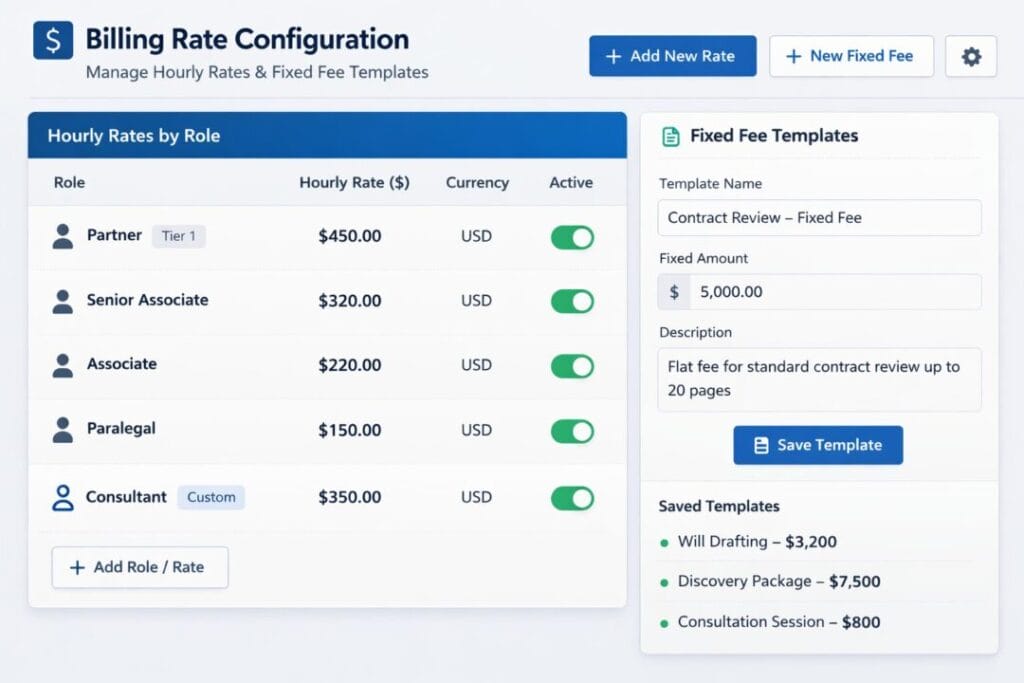
Step 3: Set Up Your Billing Rates and Fee Structures
This step defines how the software translates time and activity into billable amounts. Most legal billing platforms support multiple rate types simultaneously.
Standard Hourly Rates
- • Set a default firm-wide rate
- • Add fee-earner specific rates (partner, associate, paralegal, trainee)
- • Configure matter-specific rate overrides where applicable
Fixed Fee and Flat Rate Matters
- • Create fixed fee templates for common matter types (e.g., residential conveyancing, simple wills)
- • Link fixed fees to specific matter categories to auto-populate on new instructions
Disbursement Categories
Create a library of disbursement types — court fees, Land Registry fees, counsel’s fees, search costs — so that they can be added quickly and consistently to matters throughout the file.
Accurate disbursement tracking is critical for compliance with SRA Accounts Rules, particularly where client money is held in relation to anticipated third-party costs.
Step 4: Import or Create Your Client and Matter Database
With your rate structures in place, you can now build out your client and matter records. Most modern legal billing platforms offer three options:
- 1. CSV Import — ideal if you are migrating from a spreadsheet or legacy system
- 2. API Integration — for firms connecting to an existing case management system
- 3. Manual Entry — appropriate for new firms or when setting up a small number of active matters
For each matter record, include the client reference, matter type, supervising fee earner, billing rate override (if applicable), and billing frequency. If your firm uses matter codes for cost categorisation, configure these now.
For guidance on structuring your matter management workflow, see SpineLegal’s resource on legal practice management for small firms.
Step 5: Customise Your Invoice Template
Your invoice template is a client-facing document. It should look professional, contain all required legal information, and be consistent with your firm’s brand identity.
In the Invoice Settings or Template Editor section, configure the following:
- • Firm logo and colour scheme
- • Heading format (e.g., ‘VAT Invoice’ or ‘Solicitor’s Invoice’)
- • Matter and client reference number placement
- • Time entry display format (narrative, date, rate, units)
- • Payment terms and bank transfer details
- • Footer text, including any required regulatory disclosures
UK solicitors must comply with the Consumer Rights Act 2015 and SRA transparency rules when presenting costs information to clients. Your invoice template should reflect the information disclosed in your client care letter.
SpineLegal’s legal invoice templates for solicitors offer compliant, ready-to-customise formats that align with SRA transparency requirements.
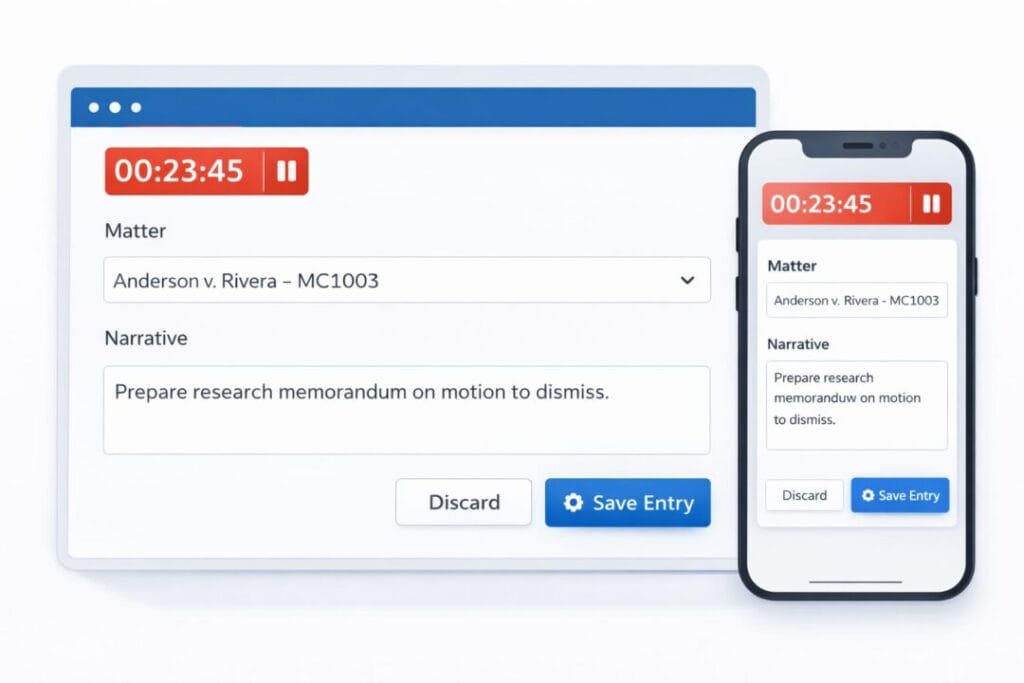
Step 6: Configure Time Recording
Accurate time recording is the foundation of any billing system. Even for fixed-fee matters, time data provides valuable management information on profitability.
During setup, configure:
- • Minimum time unit increments (6-minute units are standard in UK legal practice)
- • Default narrative templates for common activity types
- • Timer functionality — desktop, mobile, or browser-based
- • Time entry approval workflows if your firm requires fee-earner sign-off
Many firms underestimate how much billable time is lost through delayed or incomplete time recording. Build the habit into your daily workflow from the first day the system goes live.
Read more about improving time capture with time tracking tools for law firms on the SpineLegal platform.
Step 7: Set Up Payment Processing and Reporting
Once billing is configured, connect your payment workflow. This typically involves:
- • Adding bank account details for BACS / faster payment instructions on invoices
- • Configuring online payment options if the platform supports card processing
- • Setting up automated payment reminders at 7, 14, and 30-day intervals
- • Enabling overdue invoice alerts for your accounts team or billing administrator
Reporting Configuration
Before going live, configure your standard reports. At minimum, set up:
- • Outstanding debtors report (aged analysis)
- • Monthly billing summary by fee earner
- • Matter profitability report
- • WIP (work in progress) valuation report
Having these reports ready from day one means you can track billing performance immediately, rather than retrofitting analytics to an established system.
Step 8: Run a Test Invoice Before Going Live
Before sending a real invoice to a client, conduct a full end-to-end test. Create a dummy matter, record time entries, add a disbursement, and generate a draft invoice. Review it against the following checklist:
- • Firm name, address, and VAT number appear correctly
- • Matter and client references are accurate
- • Time entries display in the correct format with narrative
- • Fee and VAT calculations are correct
- • Payment details are clearly stated
- • Invoice number sequence is logical and sequential
Only proceed to live billing once the test invoice passes all checks. This step takes no more than 20 minutes and prevents embarrassing errors reaching clients on your first day.
Step 9: Brief Your Team
Technology only delivers value when it is used consistently. Before switching on the system for live use, brief every fee earner and support staff member who will interact with it.
Cover the following in your briefing:
- • How to open and assign new matters
- • The time recording workflow and minimum entry standards
- • How to add disbursements to a matter
- • The invoicing approval process (if applicable)
- • How to access their own billing and WIP reports
A 30-minute team walkthrough on the morning of go-live is sufficient for most firms. Detailed training documentation can follow in the first week.
Step 10: Go Live and Monitor Performance Closely
On your first live day, prioritise the following:
- • Confirm that new matters are opening correctly in the system
- • Ensure all fee earners are recording time as work is completed
- • Check that any imported historical data appears correctly
- • Send your first live invoice and confirm it reaches the client in the intended format
Review your aged debtors and WIP reports at the end of the first week. If data appears inconsistent, investigate early rather than allowing errors to compound over multiple billing cycles.
For ongoing support with legal billing compliance and practice management, explore SpineLegal’s resources for law firms.
A Setup Timeline You Can Actually Follow
Here is a realistic schedule for completing your legal billing software setup within a single working day:
- • 9:00 AM — Prepare documentation and gather rate data (30 minutes)
- • 9:30 AM — Complete firm profile and billing rates configuration (60 minutes)
- • 10:30 AM — Import or create client and matter records (90 minutes)
- • 12:00 PM — Customise invoice template and configure time recording (60 minutes)
- • 1:00 PM — Lunch break
- • 1:45 PM — Set up payment processing and configure reports (45 minutes)
- • 2:30 PM — Run test invoice and resolve any issues (30 minutes)
- • 3:00 PM — Brief team on system workflows (30 minutes)
- • 3:30 PM onwards — Go live
Total active setup time: approximately six hours. That is well within a standard working day.
Frequently Asked Questions
How long does it take to set up legal billing software for a small law firm?
Most small law firms can complete the full setup of legal billing software within a single working day. The process typically takes between five and seven hours of active configuration time, assuming firm profile data, client records, and billing rates are prepared in advance. Larger firms with more complex matter structures or legacy data migrations may require an additional day for data cleansing and import.
Do I need IT support to configure legal billing software?
Modern cloud-based legal billing platforms are designed for self-service configuration and do not require dedicated IT support. The setup process involves completing web-based forms, uploading a logo, and importing data via CSV. If you are integrating with an existing case management system via API, you may benefit from a brief technical consultation, but this is not a prerequisite for standalone billing setup.
What information must a UK solicitor’s invoice include?
Under SRA transparency requirements and VAT regulations, a UK solicitor’s invoice must include the firm’s name and address, VAT registration number (if VAT-registered), a sequential invoice number, a clear description of services rendered, the applicable VAT rate and amount, payment terms, and the firm’s SRA authorisation number. Your legal billing software should populate most of this information automatically once the firm profile is configured correctly.
Can legal billing software integrate with accounting systems like Xero or Sage?
Many legal billing platforms offer direct integrations with cloud accounting software such as Xero, QuickBooks, and Sage. This allows invoice data, payment records, and disbursement entries to synchronise automatically, eliminating the need for double entry. Before selecting a platform, confirm which accounting integrations are supported and whether they are included in the standard subscription or available as a paid add-on.
Ready to get started?
Explore how SpineLegal’s legal billing and practice management platform can help your firm bill accurately, recover more time, and stay compliant — all from a single, intuitive system.
Ready to simplify your firm’s billing? Let’s talk.
Book a 30-minute call with a SpineLegal specialist. We’ll walk you through setup, answer your questions, and make sure you go live with confidence. Book a free meeting.

